
RECORD MANAGEMENT
Common characteristics for the 7 types of record (Connection, Secure Note, Bank Card, Bank Account, Secure Contact, Document and Server)

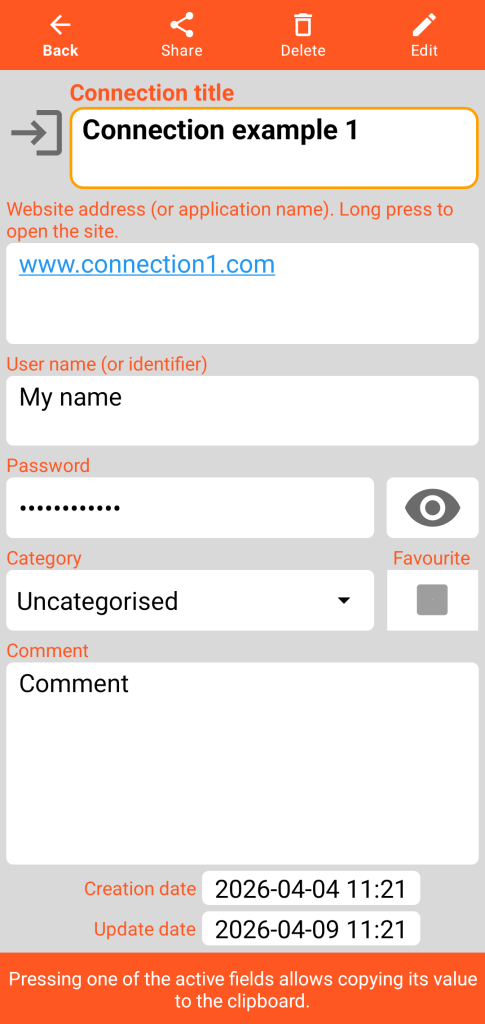
The upper part of each consultation form includes 4 buttons:
- the Back button allows returning to the main screen.
- the Share button allows sharing the content of each record by email or SMS for example.
- the Delete button moves the record to the bin (it is no longer visible in the main screen).
- the Edit button allows switching to Edition mode to make modifications.
Only the title must be filled in and its value must be unique for a record type (example: you cannot have two bank cards with the same title).
A field intended to receive a comment, the creation date and the update date of the record are present in the lower part of each form.
In Consultation mode, a single click on one of the fields copies its value to the clipboard.
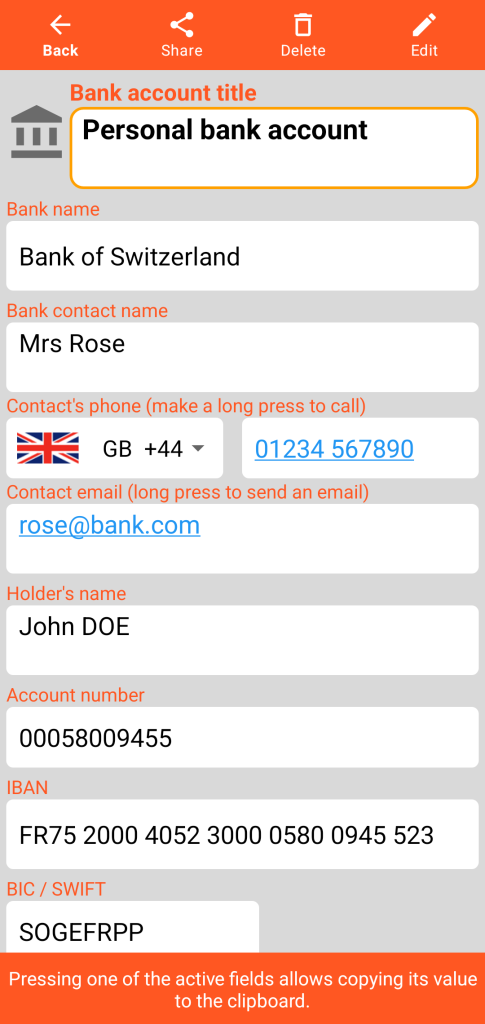
A long click on a field containing a web address opens your default browser. On an email address, the default email manager opens. In the case of a phone number, you are offered to make a phone call or send an SMS.
Content of forms
Connection
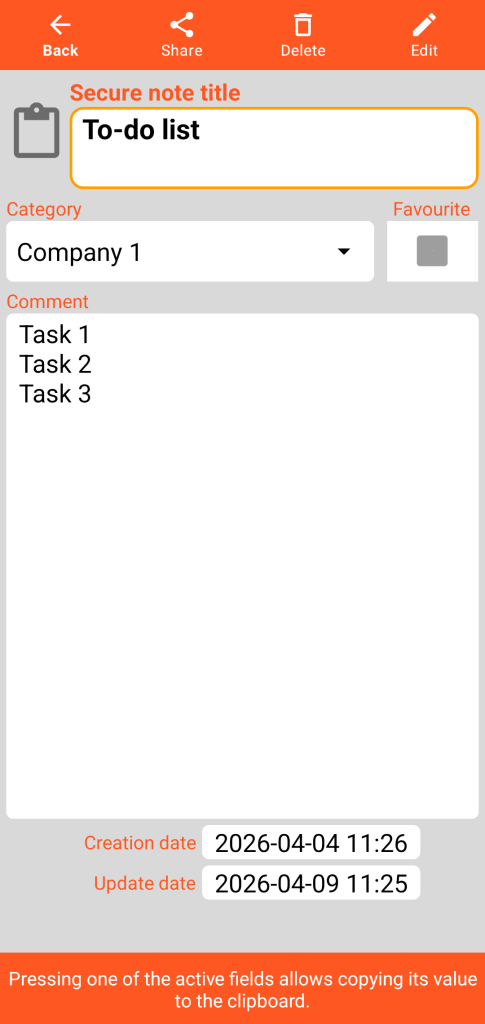
Secure note
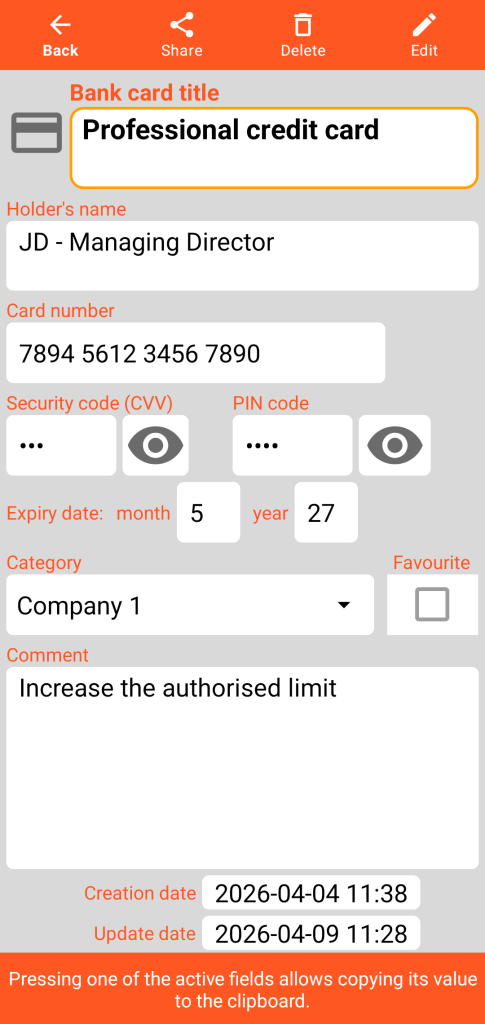
Bank card
Bank account
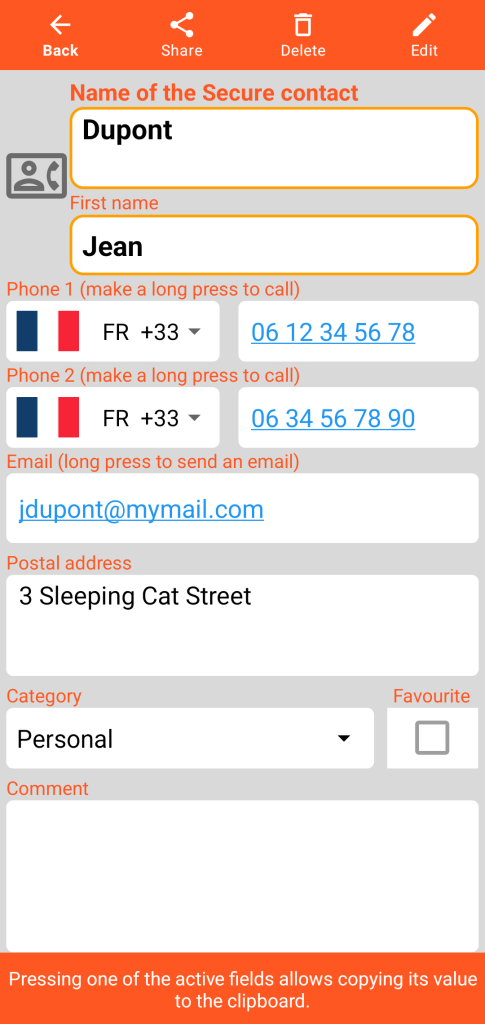
Secure contact
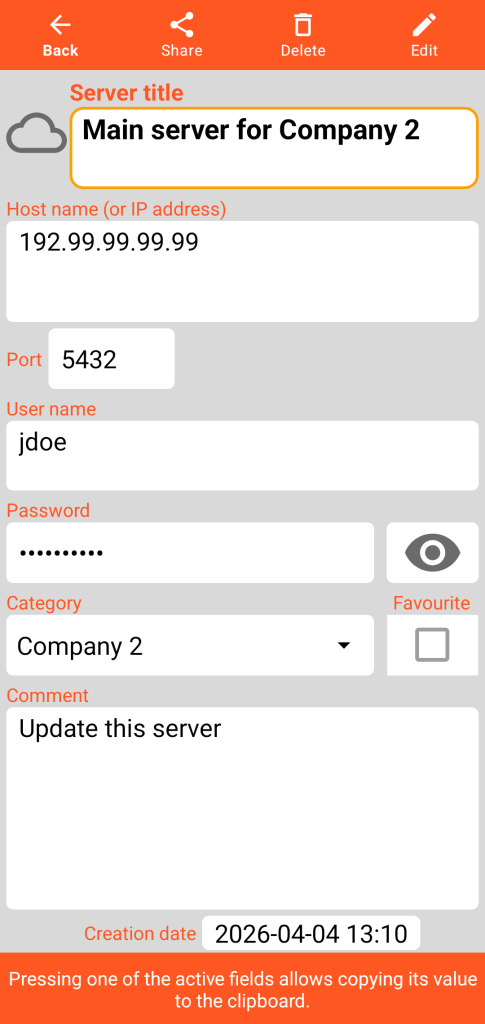
Server
Document containing a photograph (or any image file in JPEG, PNG or WEBP format)
Consultation Mode
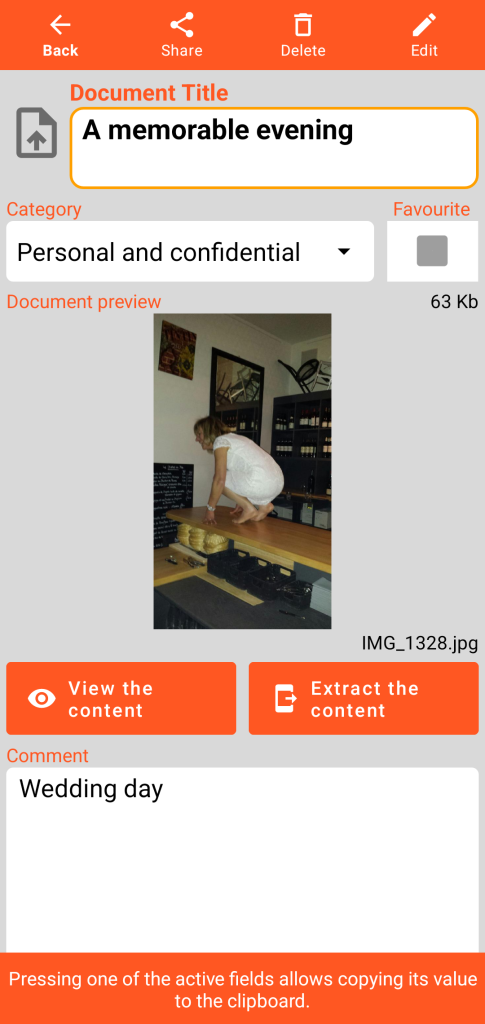
The size and name of the original image file are indicated in the Document form.
The view content button opens the screen below. The extract content button saves a copy of the image in a subdirectory named “document” in your working directory.
Content viewing mode
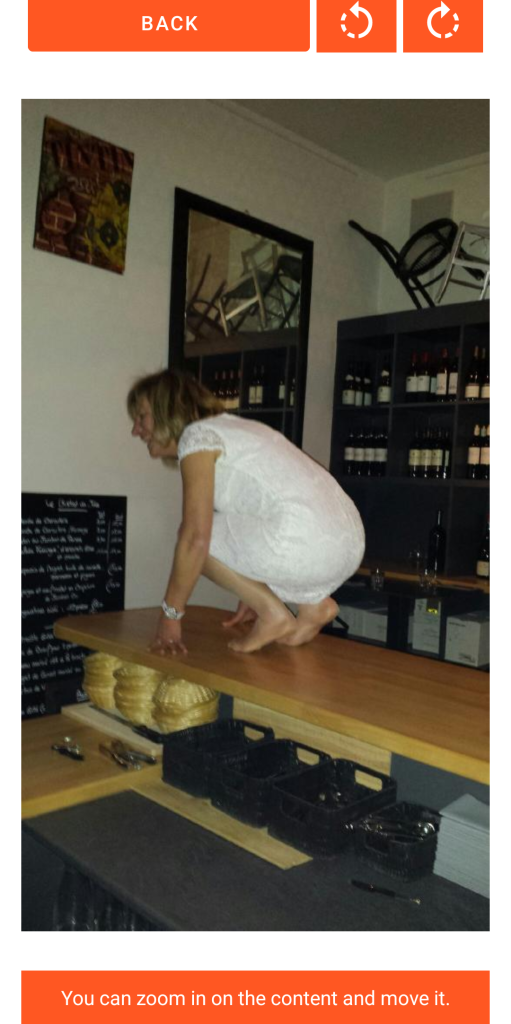
The back function closes the viewing form to return to the Document presentation screen.
The next 2 buttons allow performing a counter-clockwise or clockwise rotation of the image.
You can zoom by pinching (“pinch”) or by double-clicking and move the image manually.
Edition Mode
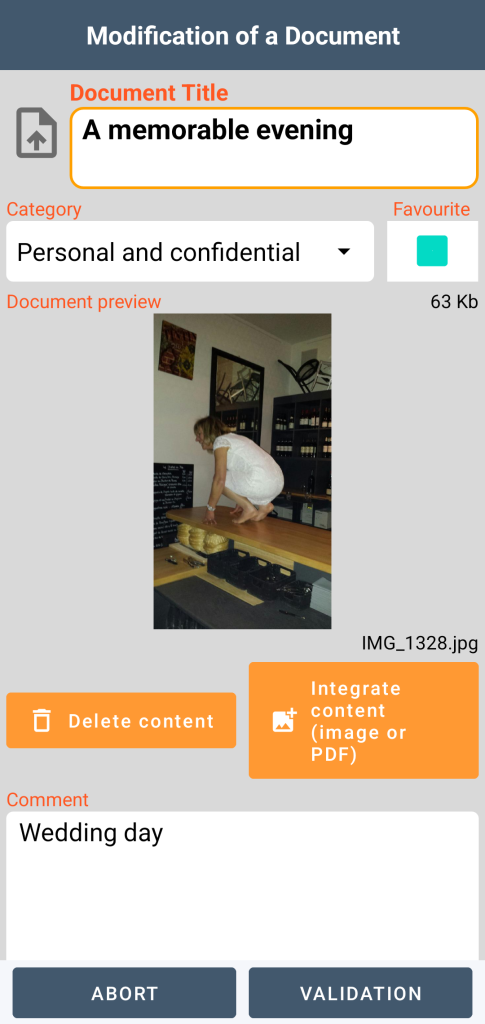
In Edit mode, you have a content deletion function that is irreversible (after your validation). You can also integrate new content; the same file cannot be present in several documents.
You can integrate images up to a size of 20 Mb.
Document containing a PDF file
Consultation Mode
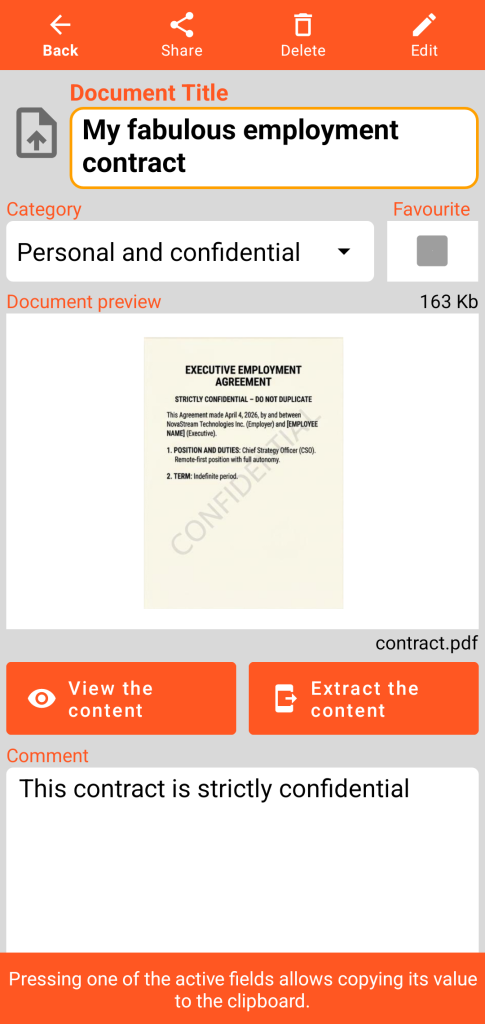
The size and name of the original PDF file are indicated in the Document form.
The view content button opens the screen below. The extract content button makes a copy of the PDF file in a subdirectory named “document” in your working directory.
Content viewing mode
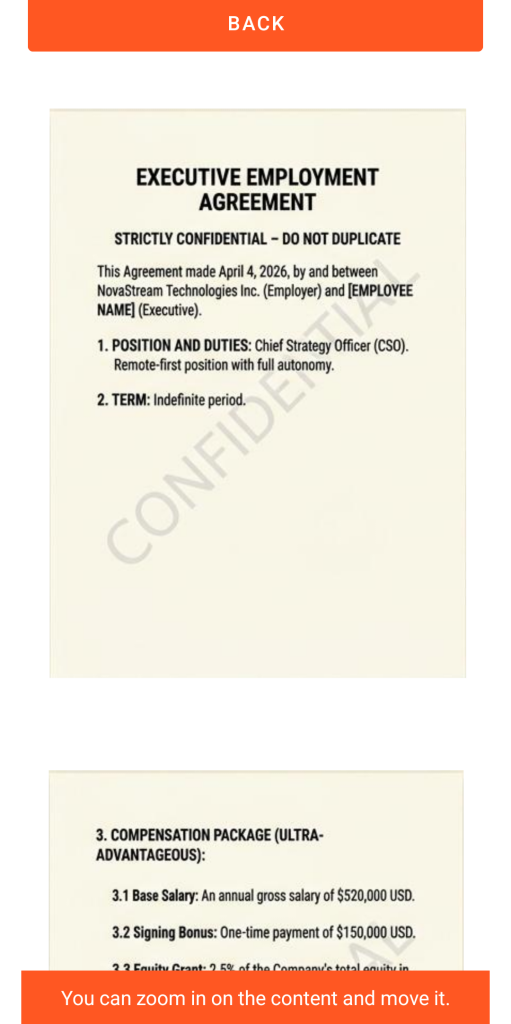
The back button closes the viewing form to return to the main Document screen.
You can zoom by pinching (“pinch”) or by double-clicking and move the PDF manually.
Reading of the different pages is done by scrolling vertically.
Edition Mode
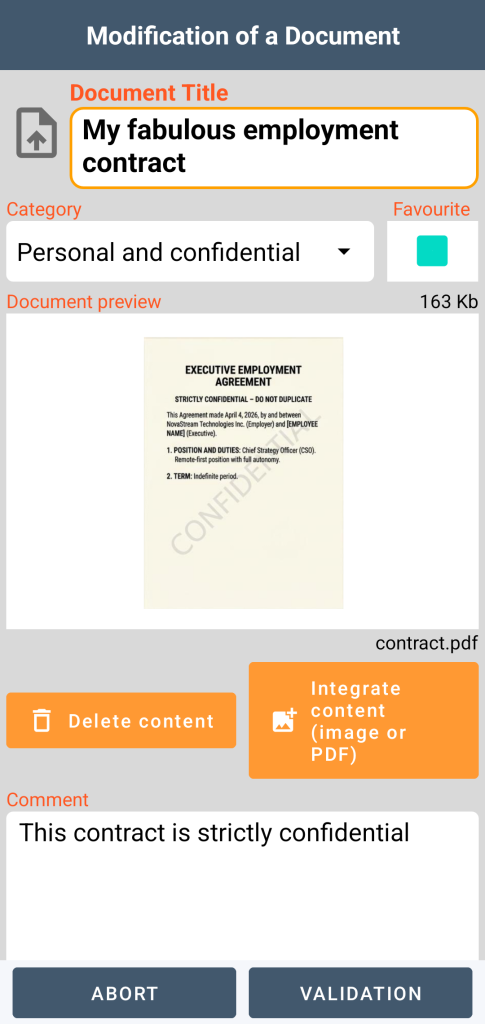
In Edit mode, you have a content deletion function that is irreversible (after your validation). You can also integrate new content; the same file cannot be present in several documents.
You can integrate PDF documents up to a size of 20 Mb.
IMPORTANT TO KNOW: adding an image or a PDF to the vault does not automatically delete the original file from your phone. To guarantee the confidentiality of your data in case of loss or theft, remember to manually delete the source file from your image gallery or your folders.
Bin
When you delete a record, it is not immediately erased. It is placed in a secure transit area: the bin. Access to its management is obtained from the general menu.
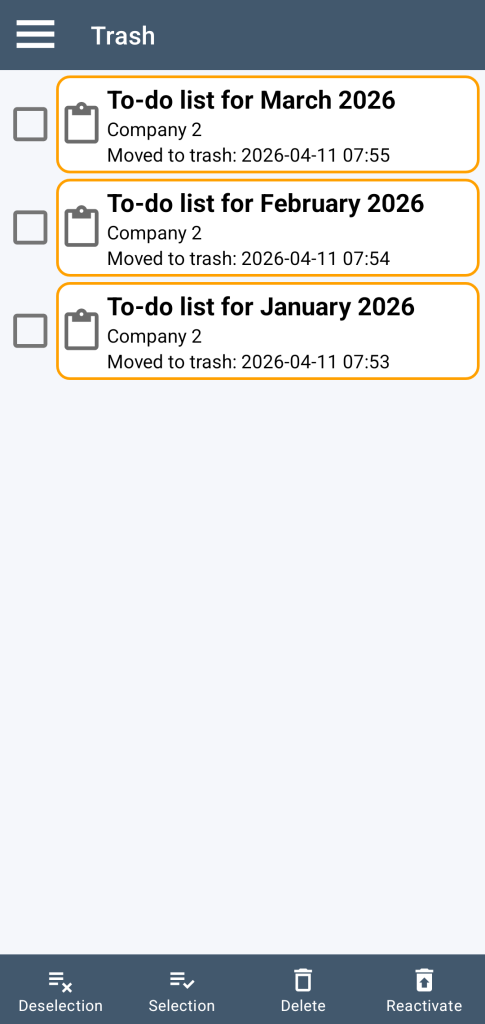
A click on one of the elements allows access to the record details.
You can select or deselect elements from the bin, either individually by ticking or unticking them, or globally by using the selection or deselection buttons.
The deletion function permanently deletes (after your confirmation) the selection of records.
The reactivation function removes the selection of records from the bin: you then find them in the main screen of the application.