
PASSWORD MANAGEMENT
Password generator
The generator is accessible from the forms managing connections, bank accounts, and servers, provided you switch to edit mode.
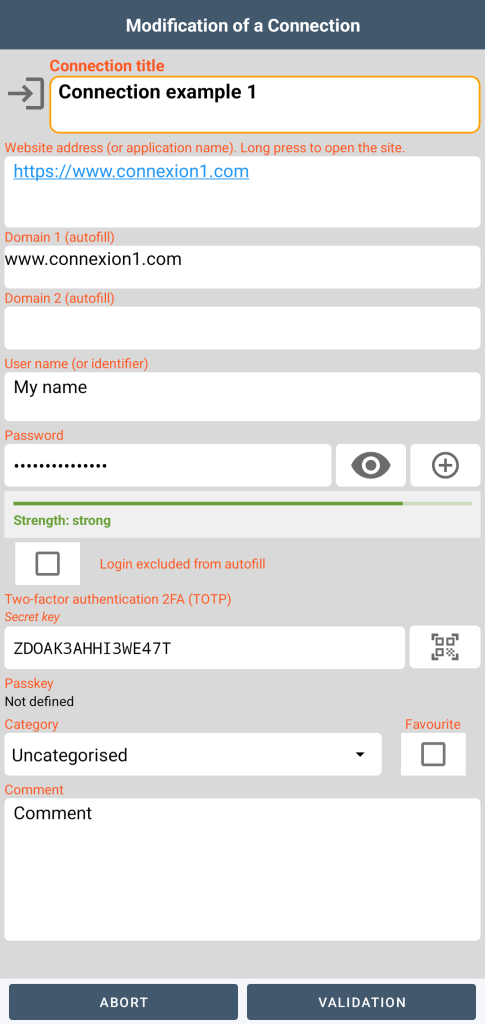
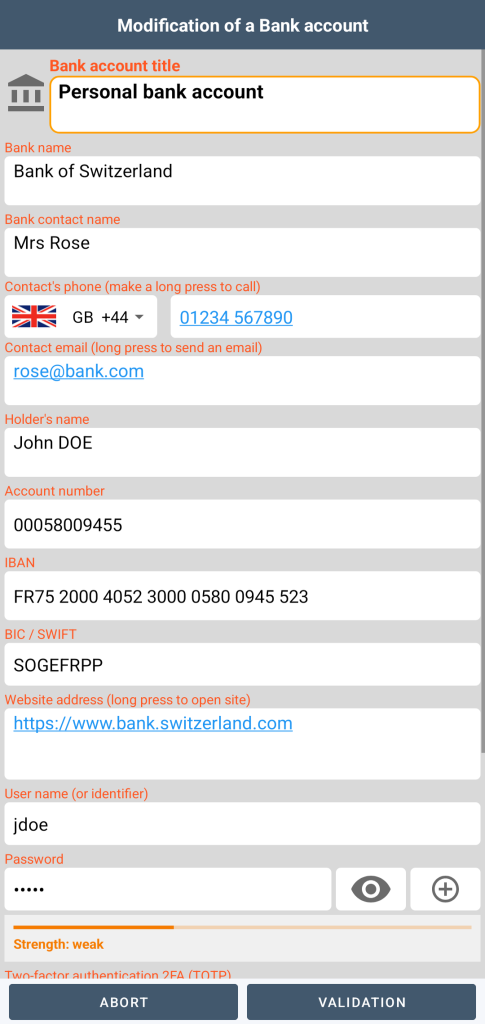
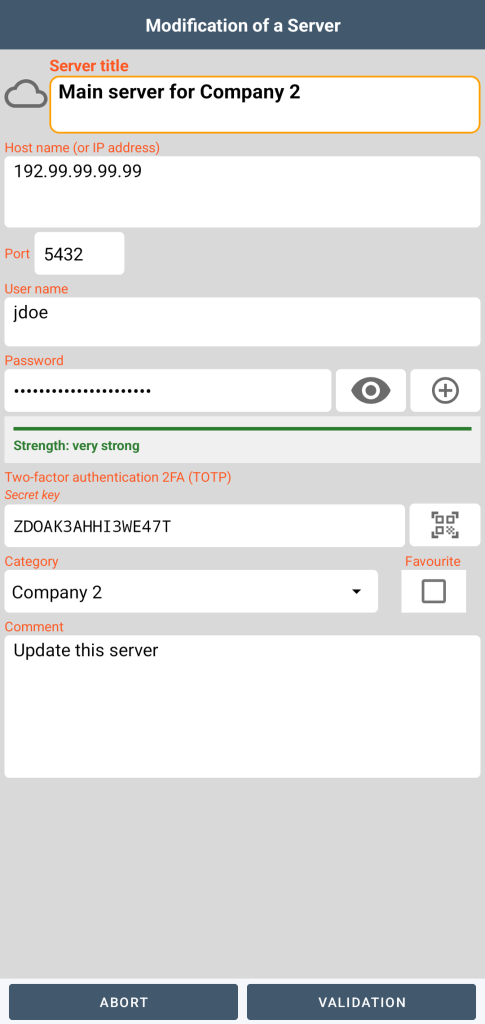

A click on this button opens the dialog managing the generator:
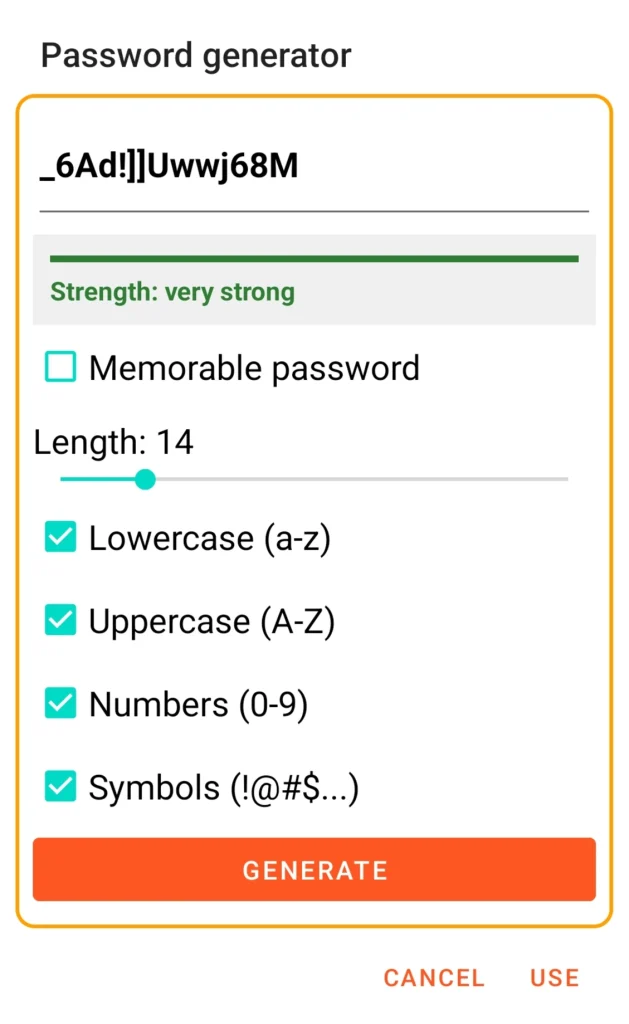
You can configure the password length, the presence of lowercase letters, uppercase letters, numbers, and symbols.
If you choose a mnemonic password, the generator produces a random sequence of English words whose count can be configured, as well as the presence of uppercase letters, numbers, and symbols.
Entropy measurement (password strength) is displayed during generation as well as within the form.
We recommend that the password consists of at least 14 characters, including 2 uppercase letters, 2 lowercase letters, 2 numbers, and 2 special characters.
2FA (TOTP) authentication
Authentication is also accessible from the forms managing connections, bank accounts, and servers.
Operating principle:
TOTP (Time-based One-Time Password) generates a 6-digit code that changes every 30 seconds. It is calculated from two elements:
- a secret key shared between the web server and your GO Passwords – LocalSafeBox app
- currently
Everything works offline: the smartphone and the server each calculate the same code on their own side, based on the time, without ever communicating.
Secret key registration:

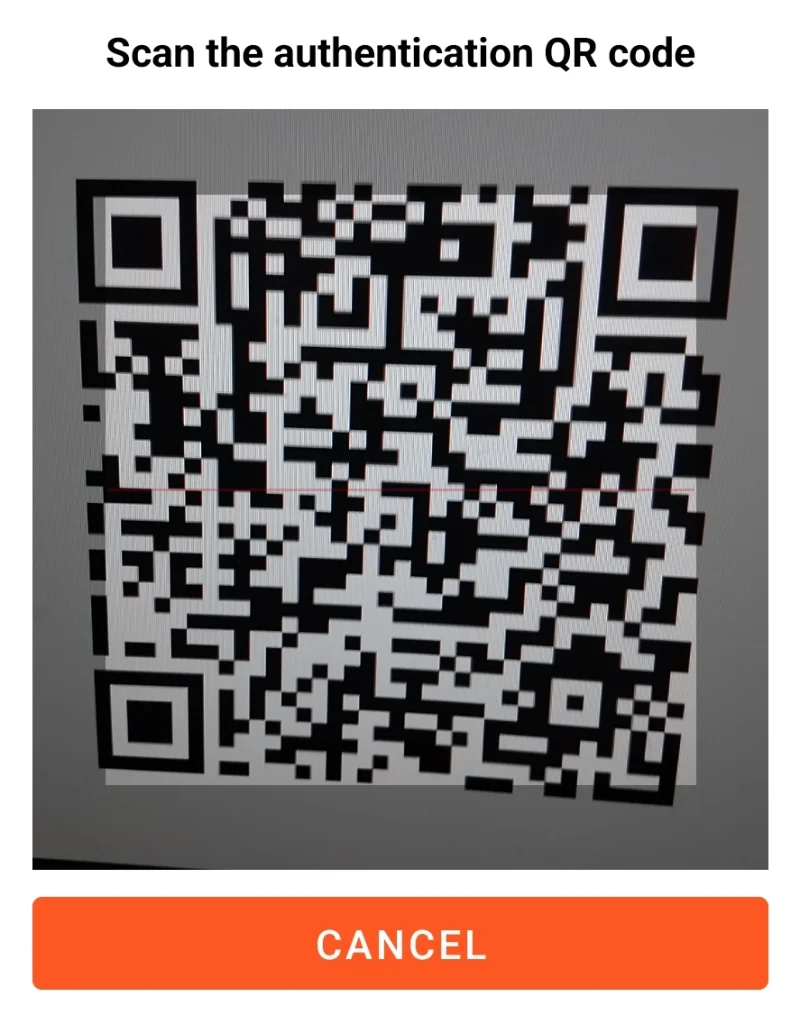
From the form in edit mode, you can scan the QR code provided by the website or copy the key directly.
Usage:

Once the secret key is registered, the 6-digit authentication code is calculated every 30 seconds as long as the form is open. The next code (usable upon expiration of the 30 seconds) is also suggested.
Please note: your smartphone must be set to the exact time for the code to match the one generated by the web server.
You can use this code in 3 possible ways:
- manual entry into the dedicated website field
- copy to the clipboard by clicking on the “current code” field in the app form and paste it into the website field
- from the website, if you used autofill to enter your username and password, the code is automatically copied to the clipboard without even needing to open the GO Passwords – LocalSafeBox app. You can then simply paste it into the appropriate field on the site.
Autofill
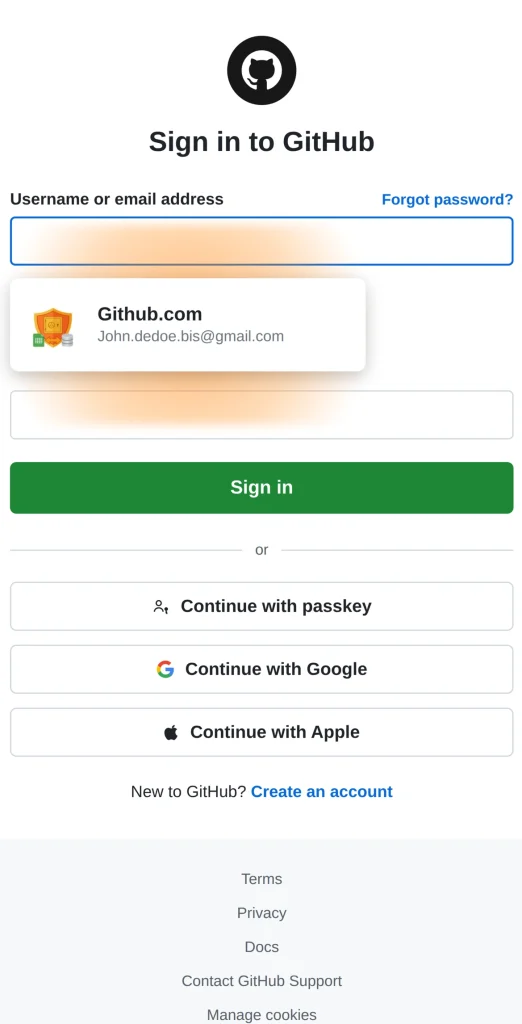
When you arrive at a login page of a site whose username and password you have already saved in your vault, GO Passwords – LocalSafeBox analyzes the structure transmitted by the system to identify the fields to fill in. It relies on several successive levels of recognition (standardized technical attributes, then finer keyword analysis if necessary) in order to adapt to the wide diversity of existing websites. It then links to the corresponding entry in your vault by comparing the visited site with the saved entries.
As soon as a matching entry is found in your vault, a suggestion appears directly above the keyboard. A simple tap sends the username and password you already saved to the webpage, without you having to retype them or remember them.
If the vault is locked at that moment, authentication (biometrics or master password) is requested first, and then the filling takes place.
Conversely, when you enter a new login on a site not yet saved, GO Passwords – LocalSafeBox detects it upon form submission and offers to create the corresponding entry, including on sites using a multi-step form (email then password on separate screens), thanks to a delayed capture mechanism that intelligently merges the two pieces of information.
GO Passwords – LocalSafeBox applies the same philosophy to payment forms: card number, cardholder name, expiry date, and security code are detected simultaneously, regardless of the order in which these fields appear on the page.
When paying for an online purchase, a single tap is all it takes to fill out the entire payment form with the card of your choice — no more searching through your wallet for your physical card to copy down a 16-digit number.
Security thought out at every step:
- Automatic locking: if the vault is locked at the time of the suggestion, authentication (biometrics or master password) is required before any filling
- Grace window: once unlocked, a short delay prevents re-prompting for authentication at every field, without leaving the vault open indefinitely
- Nothing passes through a third party: all processing (detection, matching, filling) is done locally on the device
For autofill to work, you must set GO Passwords – LocalSafeBox as your preferred service (in the app settings) and allow your browser (e.g. Chrome) to use another autofill service.
Passkeys
Usable from Android 14 onwards, a passkey is a way to sign in to a website without a password.
A passkey works like a key and its padlock:
- The site keeps the padlock. It is only used for verification; nobody can use it to log in.
- You keep the key in your vault. It never leaves your smartphone.
When a site offers to create a passkey, GO Passwords – LocalSafeBox appears in the choices offered:
- If your vault is locked, you unlock it (biometrics or master password).
- You confirm the name of the entry.
- The key is created on your phone and stored in your vault, protected by encryption.
On some sites, you can also create it from your computer: the site displays a QR code, which you scan with your phone.
On the login page of a site for which you already have a passkey:
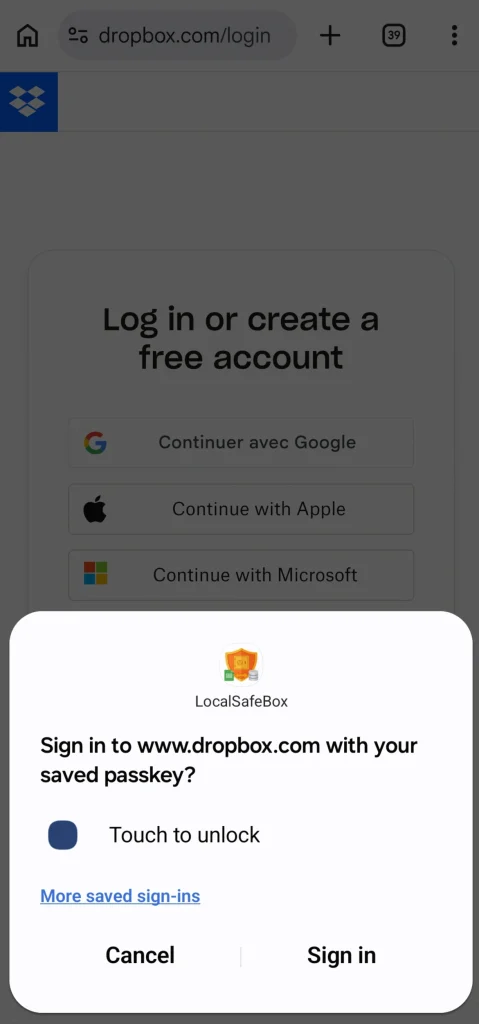
- GO Passwords – LocalSafeBox automatically suggests the corresponding passkey.
- If the vault is locked, a “Touch to unlock” message appears, and you identify yourself.