
IMPORT / EXPORT
GO Passwords – LocalSafeBox offers a set of tools for import / export of safe content in XLSX format. These tools are accessible from the general menu.
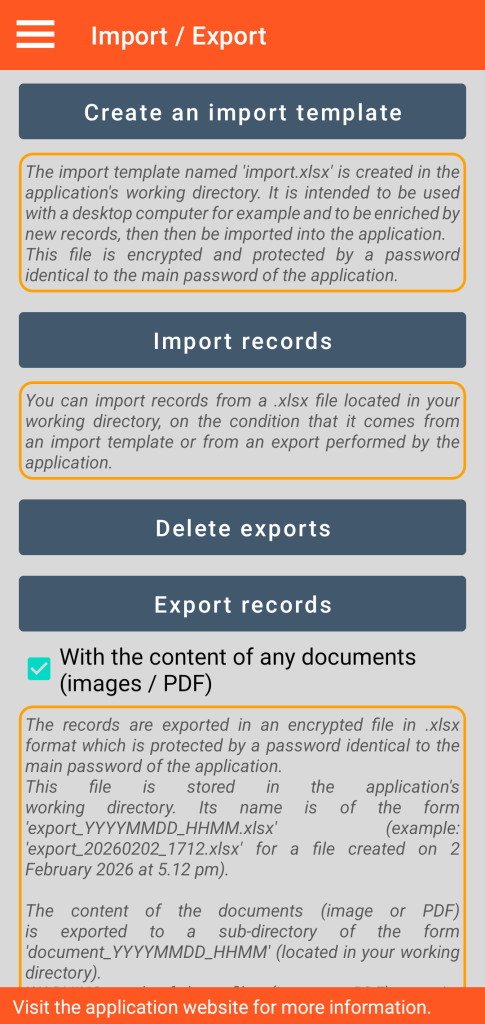
Creation of an import template
This function creates a file named “import.xlsx” in your working directory. This file is encrypted and protected by a password (identical to the application master password you defined). To be usable afterwards, this file must imperatively keep this same password.
This file is empty but it is structured into 7 tabs, one for each type of available record (Connection, Secure Note, Bank Card, Bank Account, Secure Contact, Document, Server) with an 8th one for managing Categories.
For each of the tabs, column headers list the different fields to be filled in (example: for the Secure note type, we have the columns Title, Category, Favourite and Comment).
Do not modify the file structure: adding, deleting or swapping tabs or columns is prohibited.
This import template is intended to be copied to your desktop computer. The objective is to provide you with a practical support to perform a mass entry of records from your workstation.
Rules to follow for using the import template
Due to the constraints imposed by the Android file system, certain rules must imperatively be respected:
- You must not directly modify the “import.xlsx” file on the smartphone but copy it to your desktop computer.
- To do this, the desktop computer must be connected by cable to the smartphone, which must not be on standby or locked. You must use the workstation’s file manager.
- After enriching the import file on your fixed workstation, you save it under another name (e.g. “import_2.xlsx”) before copying it back (into your working directory) onto the smartphone which must still not be in standby or locked.
Import of records
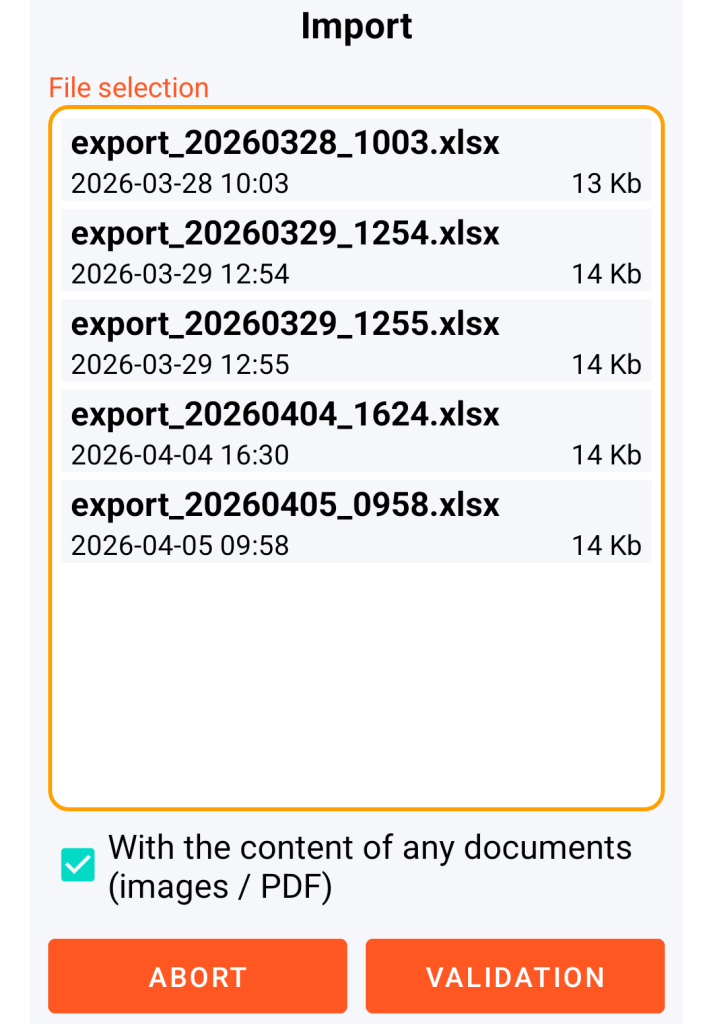
The import function allows importing any XLSX file from your working directory provided it respects the import template structure defined above and is protected by a password.
If the file password is different from the application master password, you will need to enter it when requested.
This import function is intended to be used:
– either from an import template with an enriched “import.xlsx” file,
– either from an export with an enriched “export_YYYYMMDD_HHMM.xlsx” type file (YYYYMMDD_HHMM meaning Year, Month, Day, Hour, Minute).
General principle:
Any record present in the chosen XLSX file is created in the application if it does not exist. If it is already present, this record is modified.
The existence check relates to the combination of the record type and its title (which as a reminder, must be unique).
Document with content (image or PDF):
It is possible to combine the import of XLSX data and the import of images or PDF files referenced in the file to be imported (in the Document tab).
In this case, you must copy these files into a specific sub-directory of your working directory. This sub-directory must be named as follows:
- if your XLSX file name ends with a character string of type “YYYYMMDD_HHMM” (meaning Year, Month, Day, Hour, Minute) then your sub-directory must be named “document_YYYYMMDD_HHMM”
- otherwise, your sub-directory must be simply named “document”
Example 1: if the Document tab of the “import_x_20260417_0908.xlsx” file contains a line with “doc_1” in the File Name column and “pdf” in the File Extension column, then the “doc_1.pdf” file must be present in a subdirectory named “document_20260417_0908”.
Example 2: if the Document tab of the “import_2.xlsx” file contains a line with “image_1” in the File Name column and “jpg” in the File Extension column, then the “image_1.jpg” file must be present in a subdirectory simply named “document”.
These JPG, JPEG, PNG or WEBP image type files or PDF type files are only created or updated in the application if the corresponding option is checked in the import settings.
Deletion of import or export files
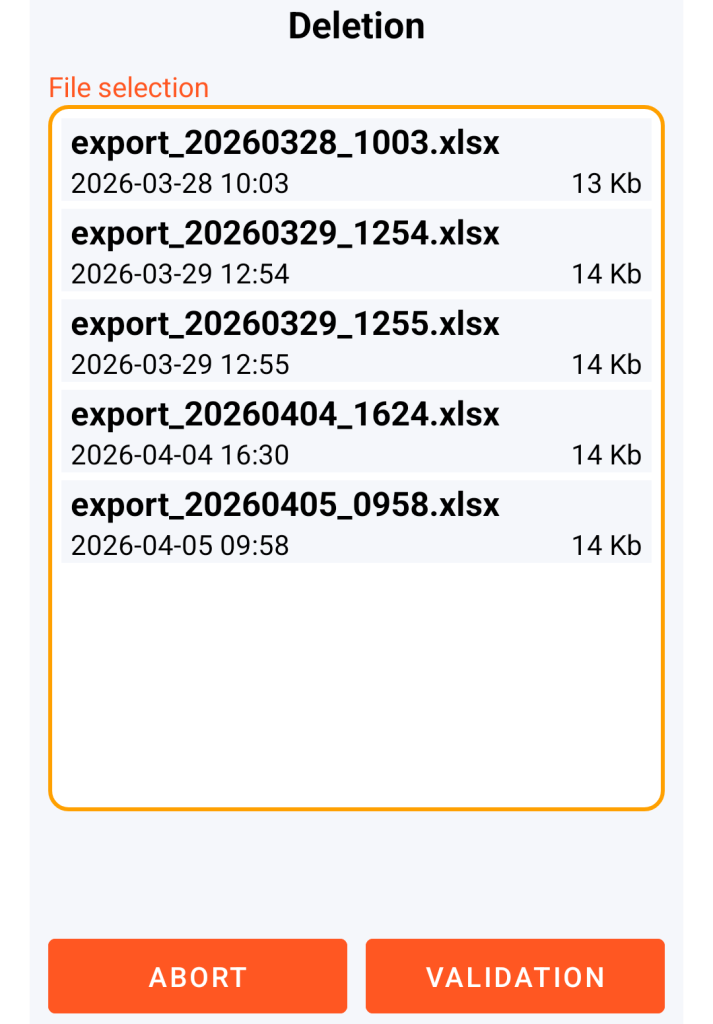
Despite the fact that the XLSX files present in the working directory are protected by a password and therefore encrypted, it is advisable to delete them after use as they do not provide as high a level of security as the GO Passwords – LocalSafeBox database.
Furthermore, as any image or PDF files copied into the sub-directory called “document” or “document_YYYYMMDD_HHMM” do not benefit from any protection, it is imperative to delete them.
GO Passwords – LocalSafeBox helps you delete these files in the following intelligent way, inspired by the principle described above.
Example 1: if you decide to delete “export_20260328_1003.xlsx” then any sub-directory named “document_20260417_0908” is also automatically deleted.
Example 2: if you decide to delete “import_2.xlsx” then any sub-directory named “document” is also automatically deleted.
Export of records
This function creates a file named “export_YYYYMMDD_HHMM.xlsx” in your working directory. This file has exactly the same characteristics as the import template.
Any image or PDF files contained in your Documents are copied into the “document_YYYYMMDD_HHMM” subdirectory of your working directory, provided that the option remains checked. We remind you of the precautions to be taken, described above, with these unprotected files.
The export of records is particularly useful especially when you want to make mass additions of records or if you want to manipulate your information with a spreadsheet-type tool in your workstation environment.
Example of a use case for a record export
- You activate the record export function with the content of any documents (images / PDF).
- You copy the file “export_20260417_1023.xlsx” as well as the sub-directory “document_20260417_1023” to your desktop computer. These copies must be made under the conditions set out for the import template.
- You delete this file and this sub-directory from your smartphone.
- On the version present on your workstation, you only rename the file “export_20260417_1023.xlsx” to “export_2_20260417_1023.xlsx”. Do not rename the directory “document_20260417_1023”.
- You create or modify information in bulk. If you add or modify a Document with content, do not forget to add or modify the corresponding file in the “document_20260417_1023” directory of your desktop computer.
- You copy the file “export_2_20260417_1023.xlsx” as well as the sub-directory “document_20260417_1023” to your smartphone, in your working directory.
- If you encounter a problem during the copying process (despite renaming the XLSX file), unplug and replug the cable connecting the smartphone to the computer and repeat the operation.
- You proceed to an import of this data, from the application.
- Through the application, you delete this last export and, manually on your workstation, you delete the file “export_2_20260417_1023.xlsx” as well as the directory “document_20260417_1023”.
IMPORTANT TO KNOW: any import / export process can only modify or add information to the GO Passwords – LocalSafeBox database as no deletion has been deliberately made possible.
For security reasons, any deletion of a record or document content can only be done through the application and by yourself directly.