USER GUIDE
Authentication
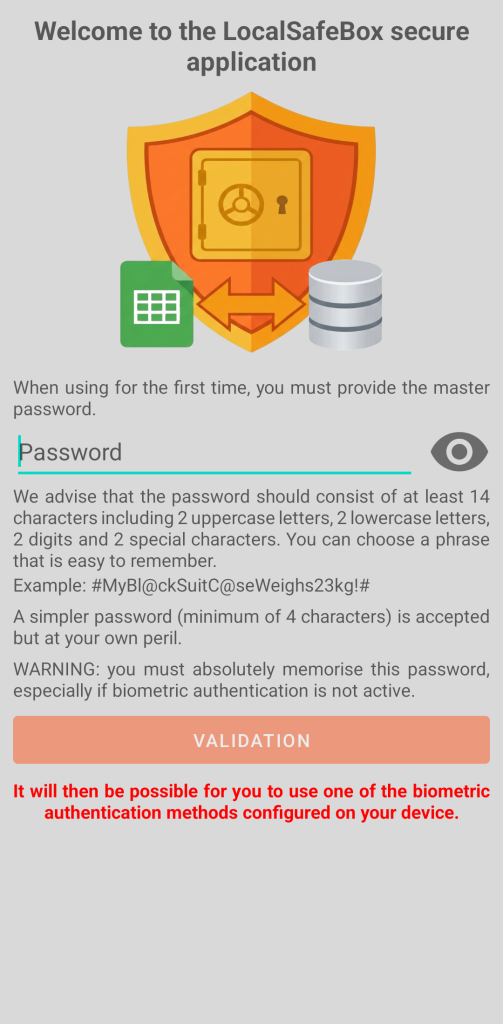
During the first use, you must enter the application password known as the master password. We recommend that the password consists of at least 14 characters including 2 uppercase, 2 lowercase, 2 digits and 2 special characters. You can choose a phrase that is easy to remember.
Example: #MyBl@ckSuitC@seWeighs23kg!#
A simpler password (minimum 4 characters) is accepted but strongly discouraged and it is at your own risk.
ATTENTION: you must imperatively memorise this password especially if biometric authentication is not active.
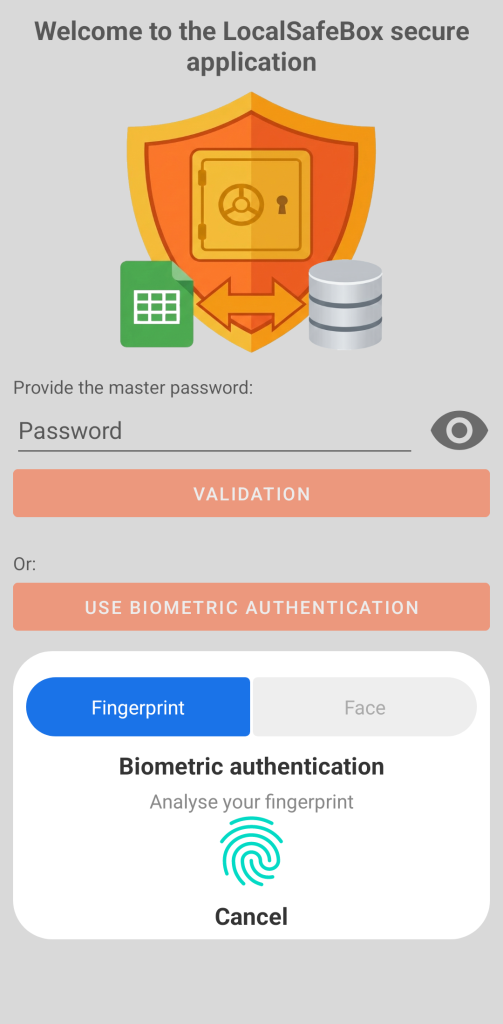
During subsequent authentications, you will be able to use one of the biometric authentication methods available and configured on your device.
GO Passwords – LocalSafeBox uses cutting-edge technologies integrated into your smartphone to guarantee access that is both instant and ultra-secure.
Biometric access depends on the Android version and the physical components (sensors) of your device:
- Fingerprint: it is available on most devices (physical sensor or under the screen). This is the most reliable and widespread method.
- Facial Recognition: the application only accepts strong security systems (3D).
To be used, the biometric device must have been configured in your smartphone settings (outside the application).
Working directory
Upon completion of the initial authentication, you are asked to define a working directory. This folder is used when you decide to extract the content of a document (image or PDF), perform an import or export action in XLSX format, or even carry out a backup or restoration of your vault.
You are advised (for practical reasons) to create this directory in the downloads directory as it is easily accessible to you, either in the smartphone internal storage or on an SD card. For security reasons, Android does not allow applications to write directly to the root of the Downloads folder. However, the application is authorised to create and manage its own dedicated sub-folder inside this directory.
The location of the working directory can then eventually be modified in the application settings.
Main screen
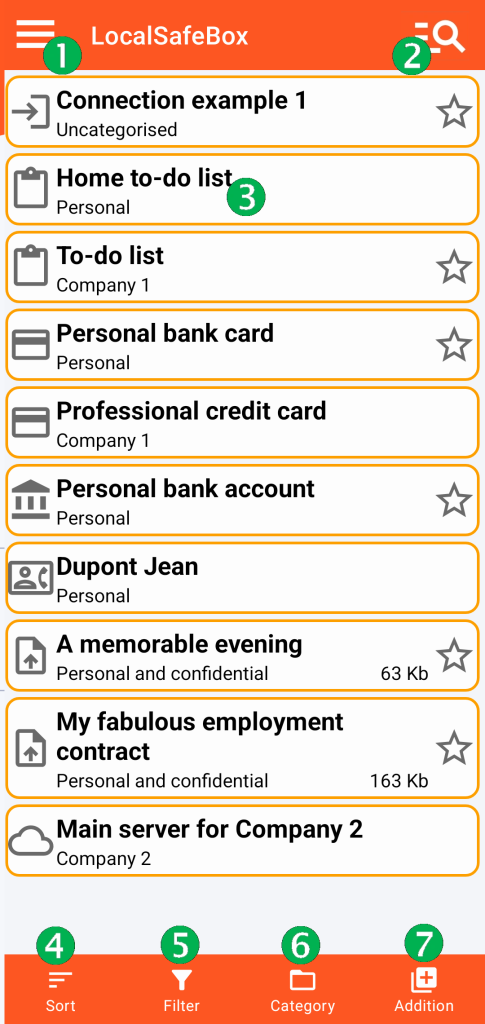
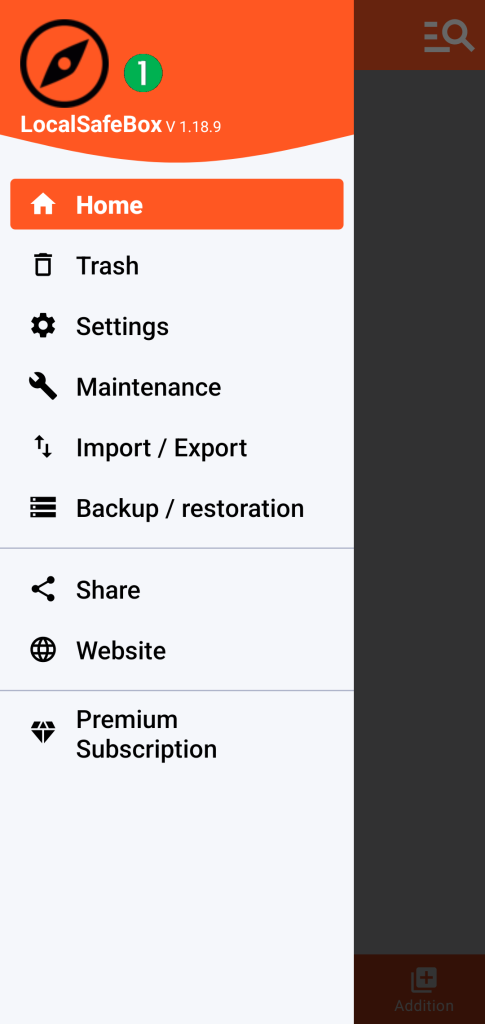
(1) Access to the general menu
(2) Global search: it allows you to perform a general search on the title of the records
(3) List of elements in your digital vault. A click on one of the records allows access to its content.
Each element is described by its title, its category, its eventual ranking as a favourite (star) and its size if it contains an image or a PDF file.
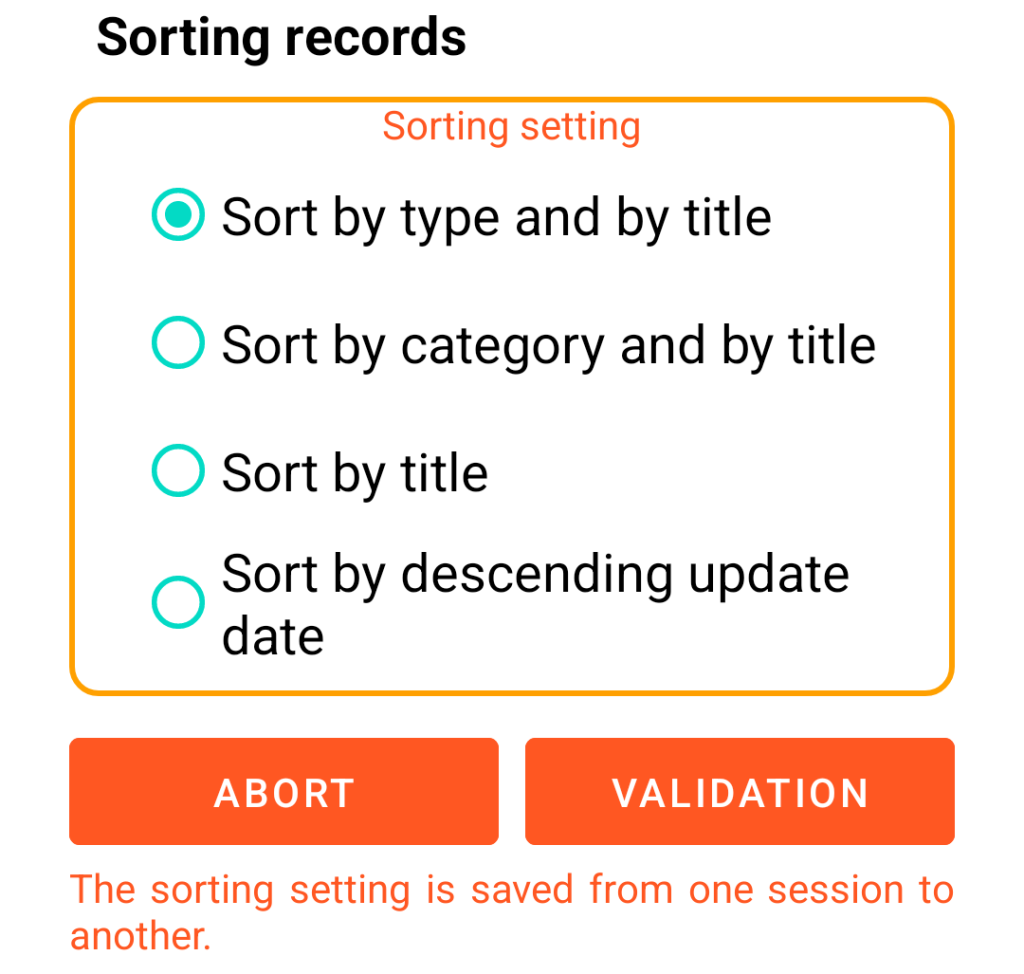
(4) Sorting of records
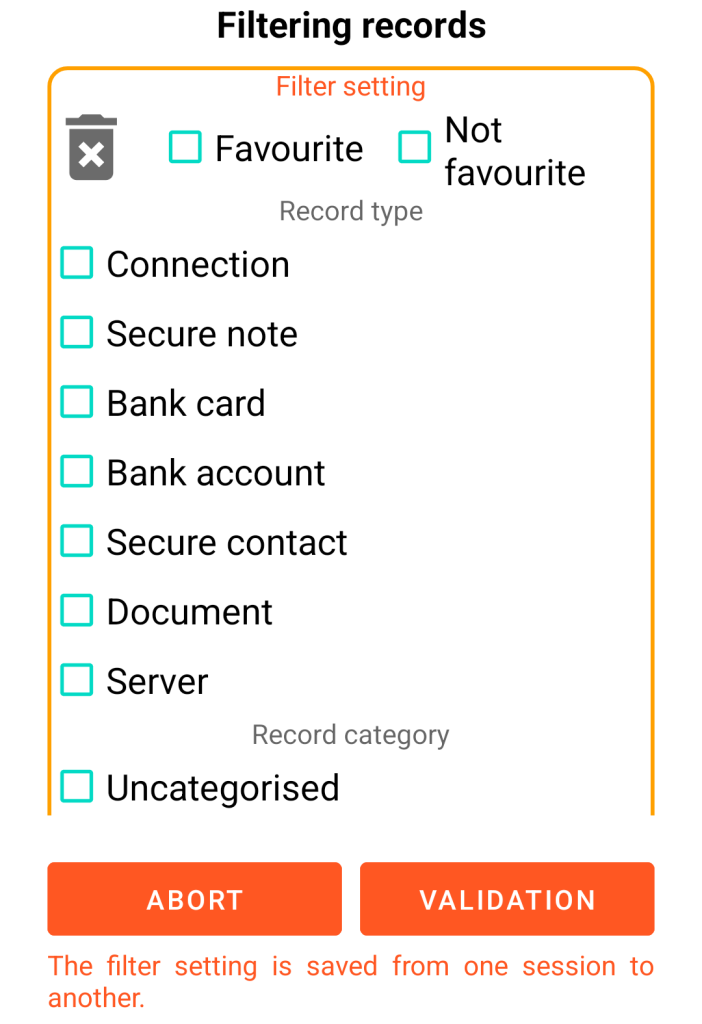
(5) Filtering of records
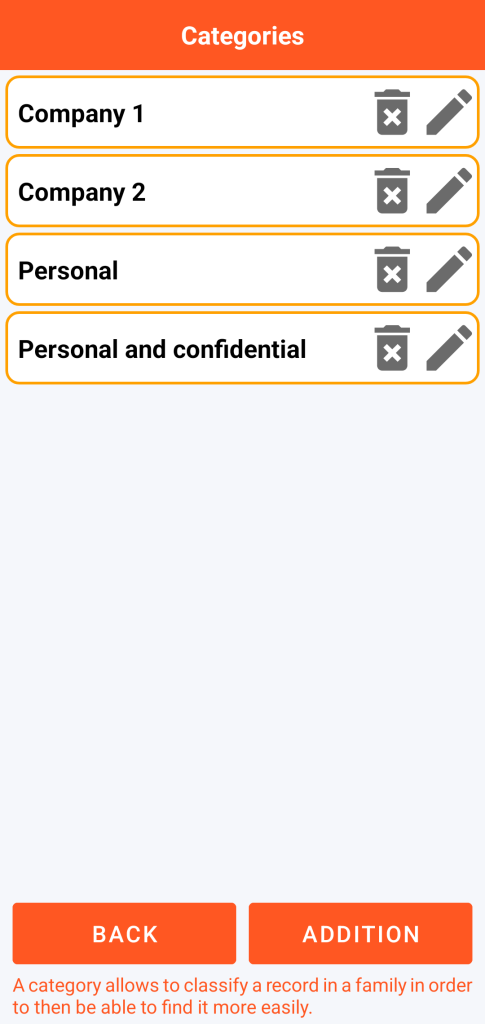
(6) Management of categories
(7) Function for adding a record
From the general menu, you can:
- Access the bin
- Configure the application
- Perform maintenance operations
- Perform an import or export in XLSX format
- Back up or restore your data
- Share the GO Passwords – LocalSafeBox application
- Consult this website
- Manage your Premium subscription
(4)
(5)
(6)
(7)