
USER MANUAL
Launching the application
- SOS Universal can be launched in the usual way by clicking on the application icon.
- It is also possible to install and use one of the two application widgets designed for SOS Universal.
Depending on the Android version, two installation modes are available: either by long-pressing an empty space on a smartphone screen (e.g., the home screen), or by long-pressing the application icon. You then select “Widgets” followed by the SOS Universal application.
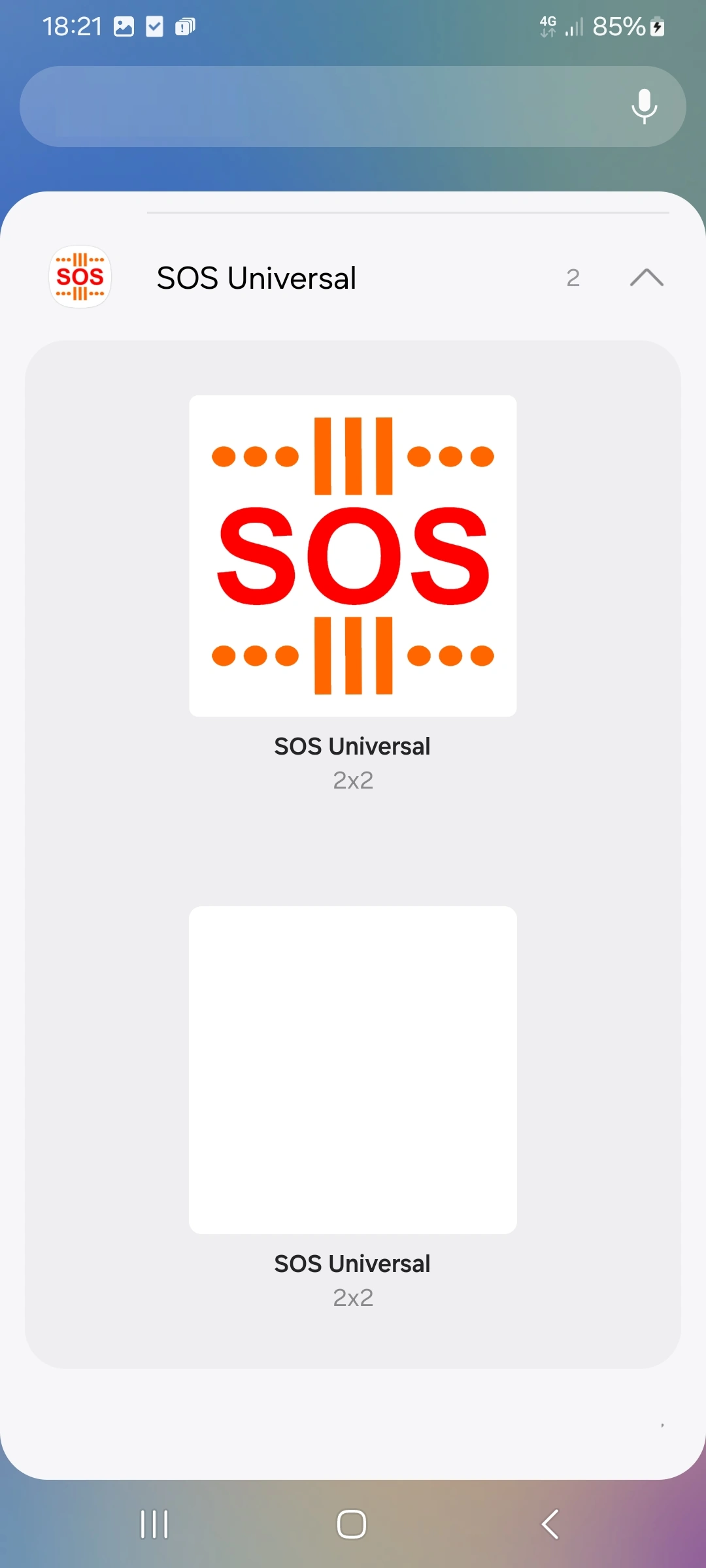
Choice of one of the two application widgets
Two application widgets are offered:
– the first (with logo) uses the SOS Universal logo.
– the second (anonymous) has no branding: it is designed for discreet operation.
You choose one of the two and proceed with the addition.
The application widget then appears in a form that allows you to resize it.
The widget functions as a launch button.
NB: if the SOS Universal alarm trigger has been configured with the “Automatic trigger by application widget” option, the widget then allows opening the application and, moreover, triggering the alarm with the content and mode you have defined.
See: Settings.
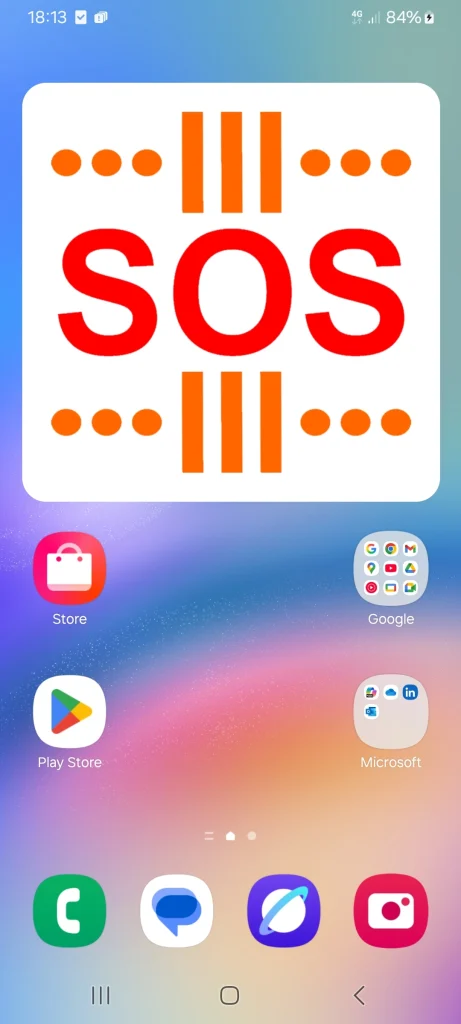
First widget
Second widget
In case of application update, depending on the Android version or your device, the application widget may require one of the following two actions to continue functioning:
– restart your device
– or deletion (by long press) and reinstallation of the application widget.
Main screen
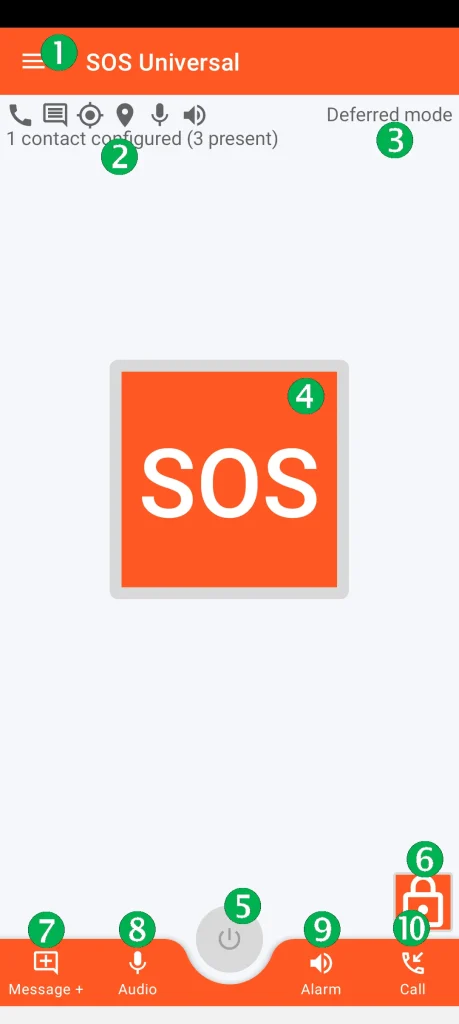
(1) Access to the general menu
(2) Pictograms summarizing alert content (in the example: phone call, SMS with geographical location and address, audio recording, and sound alarm)
(3) Indication of the chosen alert mode (immediate, deferred, or repetitive)
(4) Main alert trigger button
(5) Ongoing alert cancellation button
(6) Application lock/unlock button
(7) Function for writing an additional message added to the main SMS message
(8) Immediate audio recording function (independent of the alert)
(9) Immediate sound alarm trigger function (independent of the alert)
(10) Immediate trigger function for a fake incoming phone call (independent of the alert)
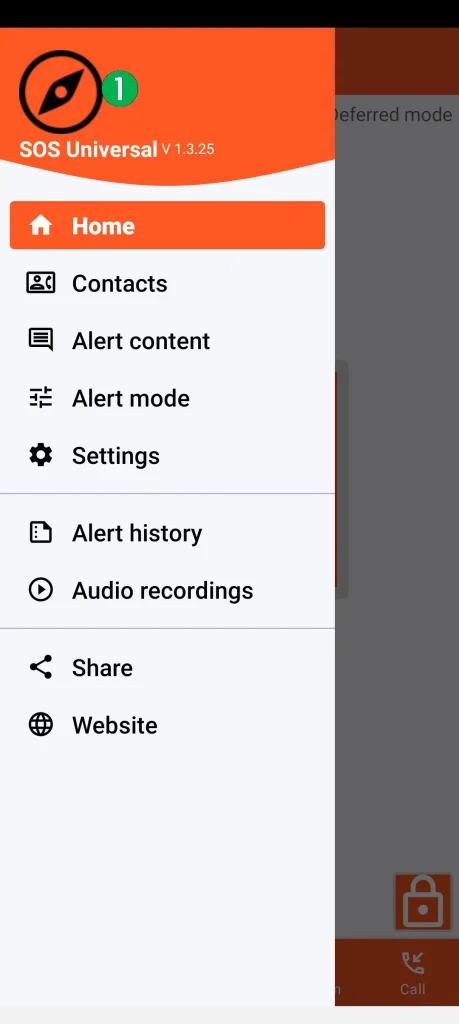
From the general menu (1), you can:
- Manage contacts to alert
- Define the alert content and mode
- Configure the application
- Access the alert history
- Administer audio recordings
- Share the SOS Universal application
- Consult this website
From the home screen (6), (7), (8), (9) and (10) you can use additional tools.